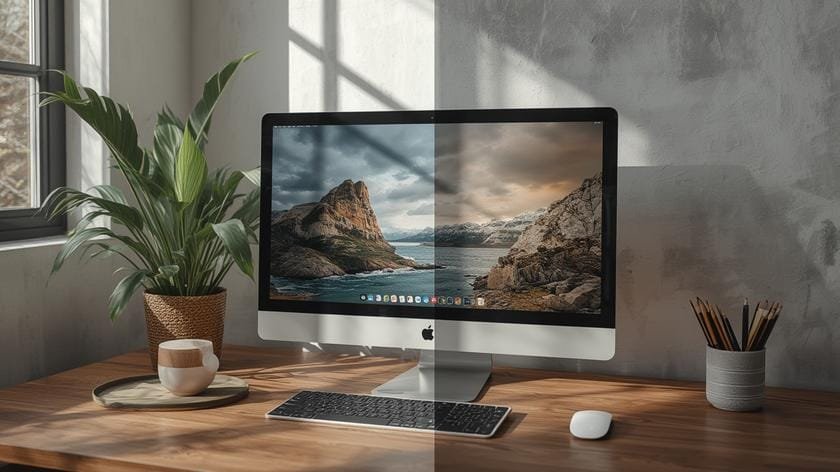
How to Adjust Color Settings on Screens
Understanding why colors appear inconsistent across different devices is the first step toward mastering visual fidelity. Whether you’re a photographer, graphic designer, video editor, or an avid gamer, proper color accuracy can dramatically affect the way content is perceived. Variations in ambient lighting, display technology, and outdated default settings often lead to washed‑out reds, overly cool blues, or unreliable contrast. By learning how to adjust color settings on screens, you empower yourself to deliver work that matches intention, reduce eye strain, and enjoy a more immersive viewing experience.
Thank you for reading this post, don't forget to subscribe!The process of adjusting color involves more than just sliding a “temperature” bar. It encompasses grasping color gamuts, gamma curves, and the role of calibration tools that translate industry standards into real‑world output. In the sections that follow we’ll explore built‑in operating‑system controls, third‑party software options, and professional hardware solutions, all while keeping the goal of accurate, repeatable results front and center. Mastering how to adjust color settings on screens therefore becomes a systematic habit rather than a one‑off tweak.
## Table of Contents
– Understanding Color Profiles
– Built‑in Display Settings
– Using Calibration Software
– Hardware Calibration Devices
– Calibration Method Comparison
– FAQ
– Conclusion and Final Takeaways
## Understanding Color Profiles
Color profiles act as a language between devices, translating the way one display interprets color to how another expects to receive it. The most common standards are sRGB, which is the default for most web content, Adobe RGB for wider gamut photography, and DCI‑P3 for digital cinema and modern high‑end displays. When a monitor is set to the wrong profile, colors may shift dramatically, causing a photo that looks vibrant on one screen to appear muted on another.
Creating a custom profile involves measuring the display’s output with a colorimeter or spectrophotometer and then generating an ICC (International Color Consortium) file that the operating system can apply system‑wide. Even if you never purchase a hardware device, understanding the role of these profiles helps you make informed decisions when using software presets or third‑party utilities.
## Built‑in Display Settings
Most modern operating systems provide built‑in tools that let users fine‑tune hue, saturation, brightness, contrast, and color temperature. Windows 10 and 11 feature the “Calibrate display color” wizard, macOS offers “Displays” preferences with a “Night Shift” toggle, and many Linux distributions ship with GNOME’s “Color” settings. While these utilities lack the precision of dedicated calibrators, they are an excellent starting point.
1. **Access the calibration assistant.** On Windows, type “Calibrate display color” in the Start menu and follow the guided steps.
2. **Adjust gamma.** The wizard will display a series of gray bars; adjust until you can see distinct steps between each shade.
3. **Set white point.** Choose a temperature (usually 6500 K for D65 daylight) that matches your workspace lighting.
4. **Fine‑tune brightness and contrast.** Use a test pattern (available online) to ensure black levels are deep without crushing detail, and whites are bright without clipping.
These adjustments lay a solid foundation before moving to more advanced screen color calibration methods. For readers who prefer an in‑depth walkthrough, learn how to perfect your monitor’s native settings.

## Using Calibration Software
Third‑party calibration software bridges the gap between OS‑level controls and professional hardware. Programs like DisplayCAL, CalMAN, and the proprietary suites that accompany colorimeters (e.g., X‑Rite i1Profiler, Datacolor Spyder) provide detailed visualizers, preset profiles, and the ability to generate custom ICC files.
When using calibration software, the typical workflow is:
1. **Install and launch the application.** Most tools detect connected displays automatically.
2. **Select a target gamma and white point.** Standard values are 2.2 gamma and D65 (6500 K) white point.
3. **Run the measurement.** The software communicates with the attached colorimeter to capture the screen’s output across the colour spectrum.
4. **Generate and apply the profile.** The resulting ICC file is saved and set as the default system profile.
Even without a physical sensor, some software offers “visual calibration” modes that rely on on‑screen test images. While not as accurate as hardware‑based screen color calibration, this approach can still correct obvious hue casts and contrast imbalances.
## Hardware Calibration Devices
For professionals who demand the highest fidelity, hardware calibration devices are indispensable. Colorimeters (e.g., X‑Rite i1Display, Datacolor SpyderX) and spectrophotometers (e.g., X‑Rite i1Pro) measure luminance and chromaticity directly from the screen, providing data that software translates into precise adjustments.
Key considerations when selecting a device:
| Feature | Colorimeter | Spectrophotometer |
|————————|——————————————-|——————————————-|
| **Speed** | Faster (seconds per measurement) | Slower (more thorough spectral data) |
| **Accuracy** | Excellent for most consumer displays | Superior for printers, projectors, and wide‑gamut monitors |
| **Price Range** | $100‑$250 | $500‑$1500 |
| **Best Use Cases** | Gaming, photo/video editing, UI design | Professional photography, print proofing |
After purchasing, the typical workflow mirrors the software‑only approach but benefits from more reliable data. Many devices come with bundled software that automates profile creation, and some manufacturers (e.g., Dell, BenQ) provide driver‑level integration that adjusts the display in real time.
If you are new to hardware calibration, start with a colorimeter; it offers a solid cost‑to‑benefit ratio while delivering noticeable improvements over default settings. Explore why a calibrated monitor matters for visual work.
## Calibration Method Comparison
Below is a concise decision‑making table that evaluates each method based on cost, required expertise, and expected accuracy. Use this matrix to choose the right approach for your workflow.
| Method | Initial Cost | Skill Level Required | Accuracy (ΔE) | Typical Use Cases |
|---|---|---|---|---|
| OS Built‑in Settings | Free | Beginner | ±4–5 ΔE | Casual browsing, gaming |
| Visual Calibration Software | Free‑$50 | Intermediate | ±3 ΔE | Content creation on a budget |
| Colorimeter + Software | $100‑$250 | Intermediate‑Advanced | ±1–2 ΔE | Photography, video, UI design |
| Spectrophotometer + Software | $500‑$1500 | Advanced | ±0.5 ΔE | Print production, high‑end video grading |
The ΔE (Delta E) value indicates perceptual color difference; lower numbers mean the calibrated display closely matches the target standard. For most digital creators, a colorimeter‑based workflow delivering ≤2 ΔE is more than sufficient.
## FAQ
**What is the ideal white point for most work environments?**
6500 K (D65) matches average daylight and is the industry standard.
**Can I calibrate multiple monitors with a single device?**
Yes, most colorimeters support sequential calibration of multiple displays.
**Do I need to recalibrate regularly?**
Recalibrate every 4‑6 weeks or after any major display firmware update.
**Will changing the room lighting affect calibration?**
Ambient light influences perceived color; aim for consistent lighting or use a dim environment during calibration.
**Is there a free alternative to paid calibration software?**
DisplayCAL is open‑source and works with many commercial devices.
**Does HDR affect the calibration process?**
HDR modes require separate HDR‑specific profiles; calibrate SDR first, then adjust HDR settings.
## Conclusion and Final Takeaways
Achieving reliable colour reproduction is a blend of knowledge, the right tools, and disciplined routine. By understanding the fundamentals of colour profiles, leveraging built‑in OS controls, employing calibrated software, and, when needed, investing in dedicated hardware, you can confidently answer the question of how to adjust color settings on screens for any scenario. Consistent calibration not only enhances visual fidelity but also reduces fatigue and ensures that the creative decisions you make are based on accurate data.
Ready to deepen your workflow? Explore further resources or initiate a fresh calibration session today. For additional reading, you may consult the latest guides by searching online: How to Adjust Color Settings on Screens.